
This guide will show you how to use your iPad as a "stand-alone" optical head unit capable of streaming Hi-Res audio, using the "OTG" (On-The-Go) audio protocol, with fully tunable Digital Signal Processing for your aftermarket car stereo system.
This configuration turns your iPad into the ULTIMATE high-fidelity head unit, delivering a pure, uncompromised digital signal straight to the trunk!
TOTAL COST $499
Parts Needed
-
DD ddHiFi TC28Max (USB-C "OTG" Audio and Power Splitter)
- DD ddHiFi TC05 or Cable Matters Active OTG Cable (USB-C "OTG" Audio cable)
-
Konnected DC to USB-C PD Fast Charge Converter (Fast charging)
-
Zapco Harmony Blue Note HB 68 II (DSP Unit)
-
Zapco HB DSP II-R Controller (Critical for this setup)
-
Inline Fuse and Fuse Holder (For the 12V power line)
Product Links
- Soundman Pure-Link Kit - Hi-Res Digital DSP Kit
- Cable Connection Kit (Amazon link)
**CABLE NOTE: Our cable connection kit shows two choices of USB-C OTG cable. It's best to use a short OTG compatible cable. Your can use the longer cable if you mount your DSP under the seat or in the trunk.
** Not all USB-C Cables are compatible with the OTG Audio Protocol. For very long runs you should use an "Active USB-C cable" compatible with the OTG Audio Protocol.
Connection Diagram Overview
-
12V Accessory Power → Inline Fuse → Konnected DC to USB-C power supply
- DD ddHiFi TC28Max → iPad's USB-C port
-
Konnected Converter → ddHiFi TC28Max (Power port)
-
DD dd HiFi TC28Max → USB-C OTG cable → Zapco Harmony DSP
-
Zapco HB DSP II-R Controller → Zapco Harmony DSP
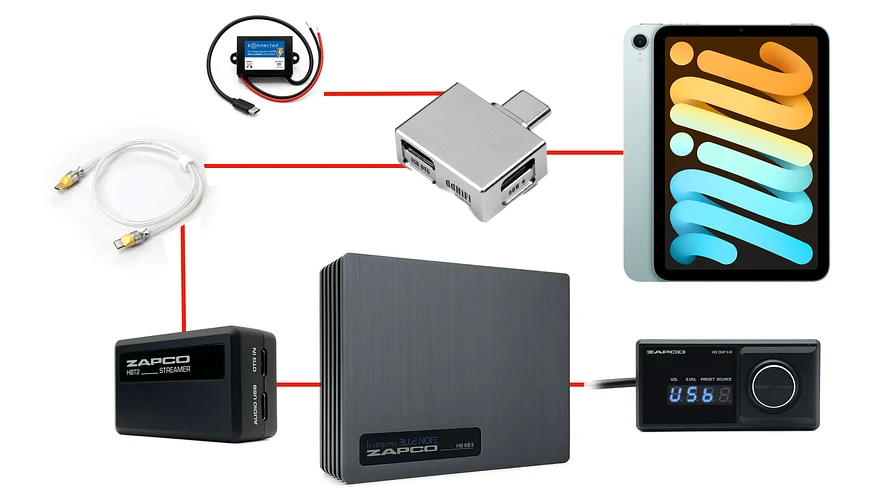
Hardware Installation Instructions
1. The Central Hub The DD ddHiFi TC28Max acts as a hub for your charger and audio output, splitting your iPad’s single USB-C port into two separate streams. One dedicated to fast charging 65W power, and one dedicated to pure audio data using the OTG (On-The-Go protocol).
2. Power & Safe Fusing Wire the Konnected DC to USB-C PD Fast Charge Converter to a 12-volt accessory power source in your car (preferably a retained accessory power wire from the stock radio). This ensures the iPad only charges when the key is turned on.
Important: Make sure the 12V positive wire going into the power supply is equipped with an inline fuse placed as close to the power source as possible. Ground the black wire properly to a clean, bare-metal chassis ground, or the radio harness ground wire. Plug the USB-C output of the Konnected converter into the power input port of the DD ddHiFi TC28Max.
3. Data & Audio Plug the OTG audio port on the DD ddHiFi TC28Max using the ddHiFi TC05 one way directional USB-C cable. The end marked "DAC" goes into the streaming module included with the Zapco HB 68 II DSP. Plug the whole TC28Max assembly directly into your iPad.
4. Master Volume Control (Critical Step) When you output digital audio from an iPad via USB-C OTG, iOS bypasses the iPad's internal volume controls and outputs a "fixed" signal, which means it outputs at 100% maximum volume. You must have a master volume control on the DSP end. Mount your Zapco HB DSP II-R controller near the driver's seat and plug it into the Harmony DSP in the trunk.
5. Amplification The RCA outputs of the Zapco Harmony DSP will then run to your choice of aftermarket amplifiers.
Software Setup & Automation
1. Maximize Apple Music Settings To take full advantage of this Hi-Res combo, you need to ensure your iPad is actually outputting high-resolution audio.
-
Go to your iPad's Settings > Music > Audio Quality.
-
Ensure "Lossless Audio" is toggled ON.
-
Change both Cellular and Wi-Fi streaming to Hi-Res Lossless (ALAC up to 24-bit/192 kHz).
Note: You may also play Hi-Res music via Spotify, Tidal, or Qobuz. Settings can be adjusted from within these apps.
2. iPad Automation (The "Head Unit" Experience) To make the iPad feel and act like a true head unit, use the native Apple "Shortcuts" app. You can create automations that trigger based on your car's ignition:
-
Turn On: Create an automation triggered by "When Power is Connected" (which happens when you turn the key on). Set it to "Play/Pause" (which will automatically play the last app you were listening to.
-
Turn Off: Create an automation for "When Power is Disconnected". Set it to "Play/Pause" and "Lock Screen" to save the iPad's battery while the car is parked.
Now you are ready to power up the system, launch the Zapco software, and tune your DSP!
Note: This configuration works with any of the DSPs in the Zapco Harmony lineup.
- See all DSP options
- See the Soundman Signature - Complete Active 3-Way Front Stage Kit