

Simple Hi-Res Analog iPad Head Unit Options
If you want to use your iPad as a "standalone" Hi-Res head unit but prefer to skip the complexity of laptop tuned Digital Signal Processors (DSPs), going analog is the perfect solution.
This guide breaks down two simplified, plug-and-play options for getting 32-bit Hi-Res audio out of your iPad and into your aftermarket amplifiers. Both options utilize the "OTG" (On-The-Go) audio protocol for pure data transfer, but rely on traditional, high quality analog equipment for volume and tone control. No software tuning required!
The Core Technology: Why Analog?
When you output audio from an iPad via USB-C OTG, the iPad locks its internal volume to 100%. Then a dash mounted volume knob can be used to easily control the system volume.
Both of the options below use the Zapco Z-OTG-BT C. This interface takes the pure digital OTG signal from your iPad and uses its premium internal 32-bit DAC and pre-amp chip set to process the audio into a flawless, Hi-Res analog signal. Feeding a clean signal into a dedicated analog volume controller ensures you get audiophile grade sound quality with the simplicity of physical knobs.
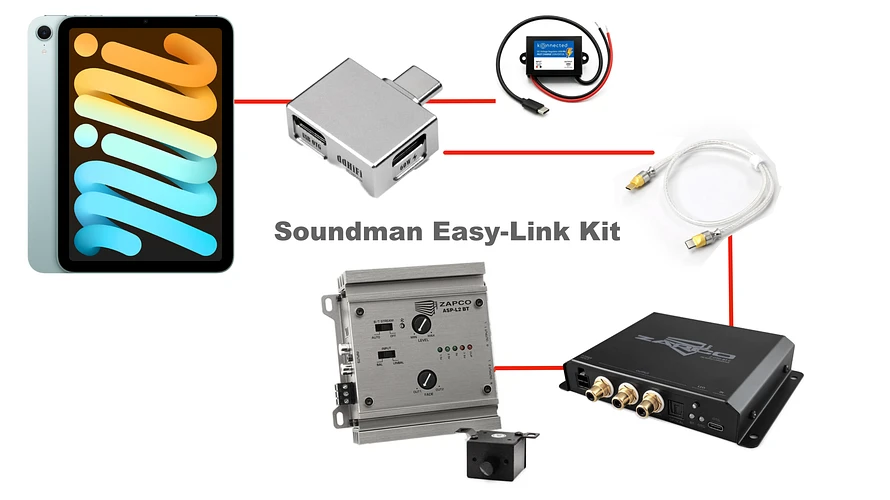
Option 1: Soundman Easy-Link - 32-Bit Hi-Res OTG & Analog Volume Driver Kit
Best for: Minimalists who want pure, uncolored sound with a simple, hidden installation and a physical volume knob.
Product Links
- Soundman Easy-Link Kit
- Cable Connection Kit (Amazon Link)
This kit is designed for maximum simplicity. It takes the pristine 32-bit analog signal from the Zapco DAC and feeds it into a high-voltage line driver, giving you a single master volume knob to control your whole system. With 4 channel RCA outputs.
What’s Included:
-
Zapco Z-OTG-BT C (USB-C OTG to analog RCA interface)
-
Zapco ASP-L2 BT (2-Channel in, 4 channel out, line driver/pre-amp)
-
Dash mountable volume knob
How it Works: The iPad connects to the Zapco Z-OTG-BT C, which converts the digital track to a rich analog signal. That signal feeds into the Zapco ASP-L2 BT. The ASP-L2 BT allows you to control the master volume via a dash mountable knob before sending a strong, clean signal directly to your choice of aftermarket amplifiers.
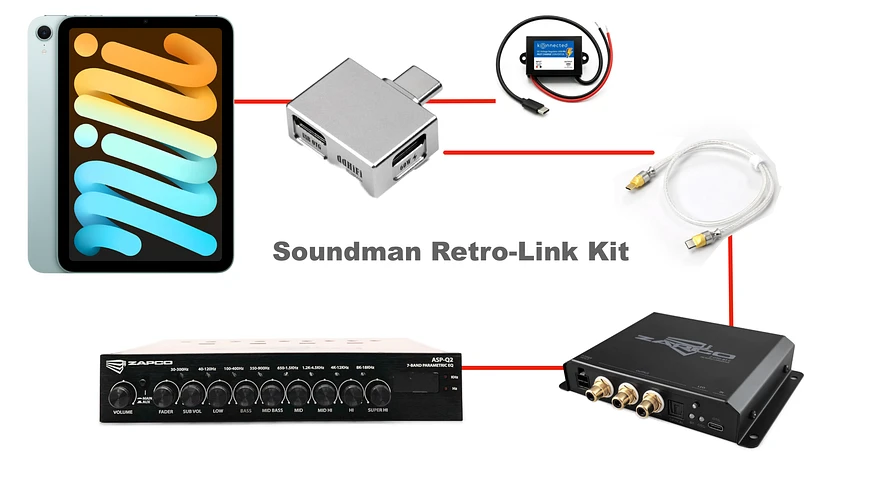
Option 2: Soundman Retro-Link - 32-Bit Hi-Res OTG & Analog Pre-Amp Kit
Best for: Classic car builds, "old school" vehicles, or anyone who loves the look and feel of a physical EQ with knobs for master volume and separate subwoofer control.
Product Links
- Soundman Retro-Link Kit
- Cable Connection Kit (Amazon Link)
This kit merges modern 32-bit Hi-Res streaming with old-school analog tuning. It gives you an in dash, half DIN equalizer to actively tune your music on the fly, just like the classic high end stereos of the 80s and 90s.
What’s Included:
-
Zapco Z-OTG-BT C (USB-C OTG to Analog RCA interface)
-
Zapco ASP-Q2 (Analog In-Dash Equalizer & Pre-amp)
How it Works: The iPad feeds the Zapco Z-OTG-BT C, which routes the converted 32-bit analog signal directly into the Zapco ASP-Q2 EQ. Mounted in or under your dash, the ASP-Q2 gives you immediate physical control over a multi band analog EQ, built-in crossovers, main system volume, and a dedicated subwoofer level control. It’s the perfect way to blend a classic aesthetic with modern, Hi-Res audio technology.
System Setup & iPad Automation
Even with an analog hardware setup, you can still automate your iPad to act like a factory radio using Apple's built-in software.
1. Maximize Apple Music Settings Ensure your iPad is delivering the highest quality source file to your Zapco DAC.
-
Go to your iPad's Settings > Music > Audio Quality.
-
Ensure "Lossless Audio" is toggled ON.
-
Change both Cellular and Wi-Fi streaming to Hi-Res Lossless (ALAC up to 24-bit/192 kHz).
Note: You may also use Hi-Res music via Spotify, Tidal, or Qobuz. Settings can be adjusted from within these apps
2. iPad Automation (The "Head Unit" Experience) Use the native Apple "Shortcuts" app to automate your iPad based on your car's ignition (when your charger receives power).
-
Turn On: Create an automation triggered by "When Power is Connected" (which happens when you turn the key on). Set it to "Play/Pause" (which will automatically play the last app you were listening to.
-
Turn Off: Create an automation for "When Power is Disconnected". Set it to "Play/Pause" and "Lock Screen" to save the iPad's battery while the car is parked.